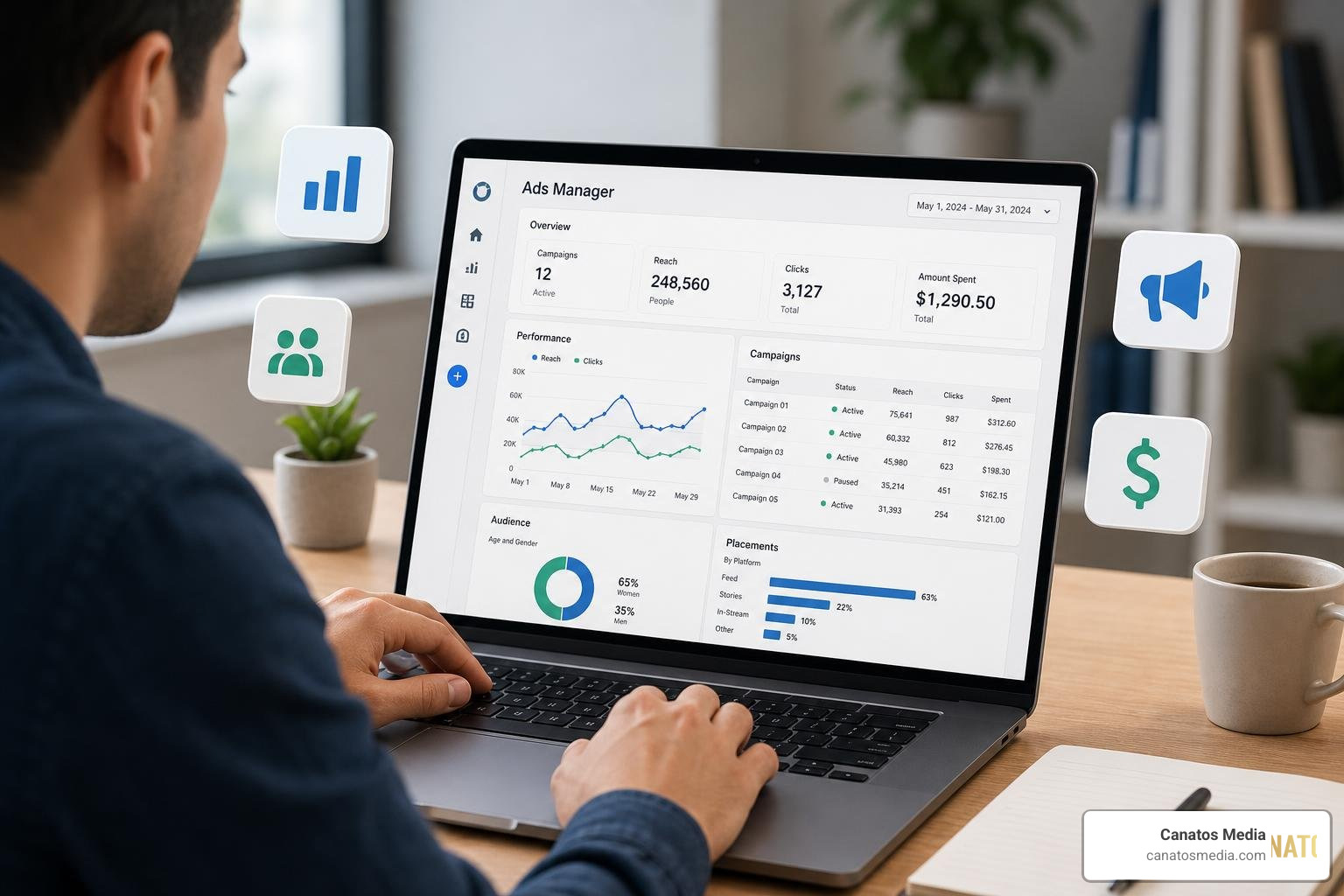
Why Meta Business Suite Ads Manager Confuses So Many Business Owners (And How to Fix That)
If you’ve ever logged into Facebook trying to run an ad and ended up lost between tabs, you’re not alone. The Meta Business Suite Ads Manager ecosystem is actually two separate tools that work together — and most beginners don’t realize that until they’ve wasted hours clicking in circles.
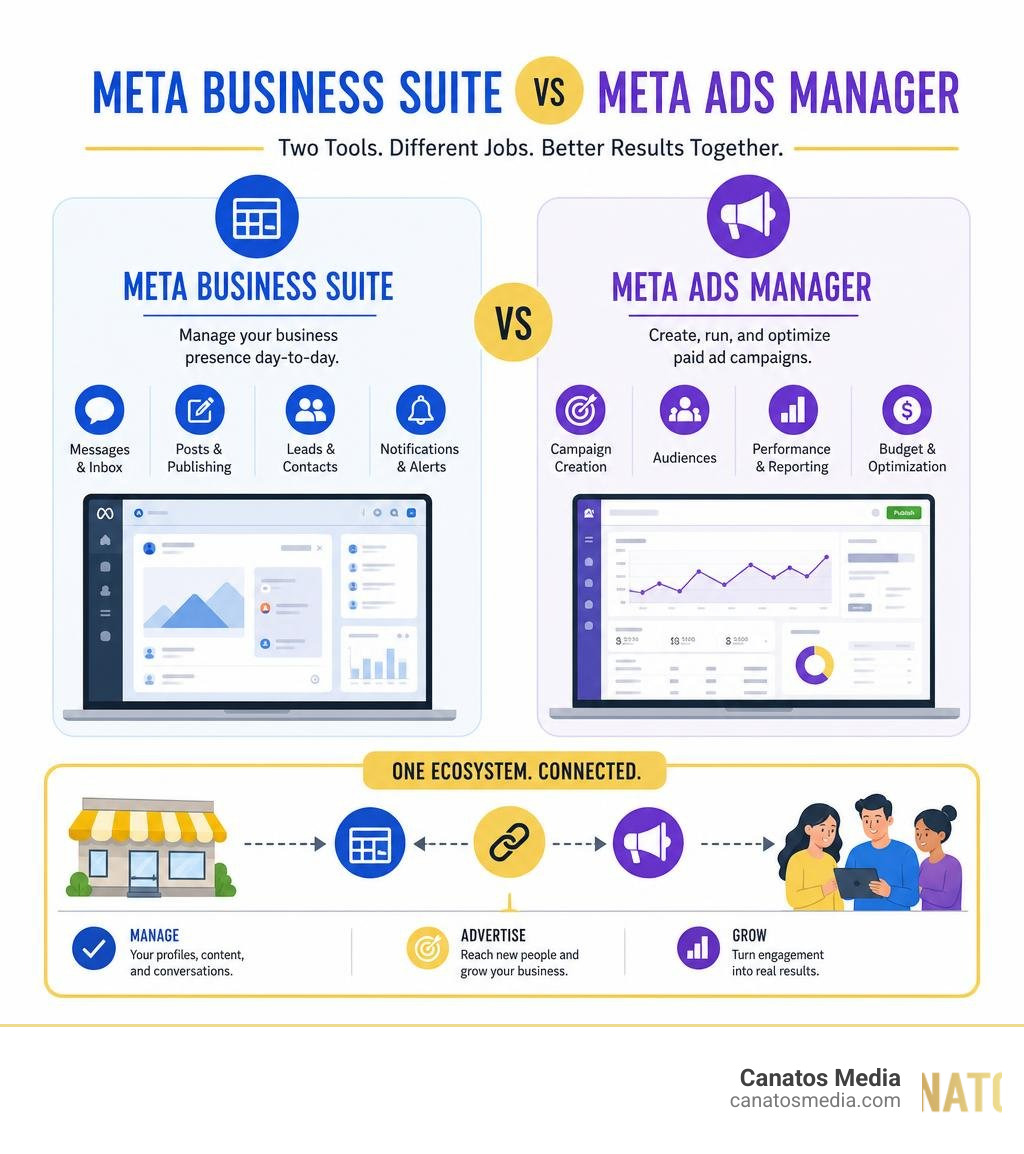
Here’s a quick breakdown of what each tool does:
| Tool | Primary Purpose |
|---|---|
| Meta Business Suite | Manage your Facebook Page and Instagram account — posts, messages, leads, and notifications |
| Meta Ads Manager | Create, run, and optimize paid ad campaigns across Facebook, Instagram, Messenger, and more |
The simple version:
- Use Meta Business Suite to manage your business presence day-to-day
- Use Meta Ads Manager when you want to spend money to reach new customers
Both live inside the same Meta ecosystem. Both can be accessed from your Facebook Page. But they do very different jobs — and mixing them up costs time and money.
I’m Nic Canobbio, founder of Canatos Media, and after producing content that’s reached over 60 million views and managing paid media strategies across multiple platforms, I’ve seen how mastering the Meta Business Suite Ads Manager combination can transform a local business’s ability to generate leads and drive real growth. In this guide, I’ll walk you through everything you need to know — from setup to optimization — in plain language.
Meta business suite ads manager terms to remember:
What is the Meta Business Suite Ads Manager Ecosystem?
To understand how to grow your brand in the Tri-State area or out on Long Island, you have to understand the layout of Meta’s digital landscape. Many local businesses get caught in an endless loop because both portals appear inside Facebook and both deal with business activities.
Let’s clarify: Meta Business Suite is your centralized control room for organic business assets. It was built specifically for page managers to handle day-to-day operations across Facebook and Instagram. Through Meta for Business (formerly Facebook for Business), you can view notifications, respond to direct messages, schedule organic posts, and look at high-level engagement analytics.
On the flip side, Meta Ads Manager is a highly specialized, technical powerhouse built solely for performance advertising. It replaced older tools like Power Editor to give advertisers granular control over targeting, budgeting, placements, and complex split-testing.
| Feature | Meta Business Suite | Meta Ads Manager |
|---|---|---|
| Primary Goal | Asset management & organic growth | Paid customer acquisition & ROI |
| Key Activities | Posting, scheduling, customer messaging | Campaign creation, audience building, bidding |
| Ad Capabilities | “Boost” posts (basic targeting) | Advanced campaign structures, custom audiences |
| Reporting Depth | Basic page likes, reach, and post engagement | Conversion tracking, ROAS, cost-per-click, placement breakdowns |
While Meta Business Suite offers light, simplified advertising options (like boosting a post to get quick local visibility), relying on it for your main advertising campaigns is a fast way to burn through your marketing budget. For a truly professional, structured campaign, you need to transition into the dedicated Ads Manager platform. You can learn more about how these interact in our guide on Facebook Ads Manager vs Meta Business Suite 2026.
Core Capabilities of Meta Business Suite
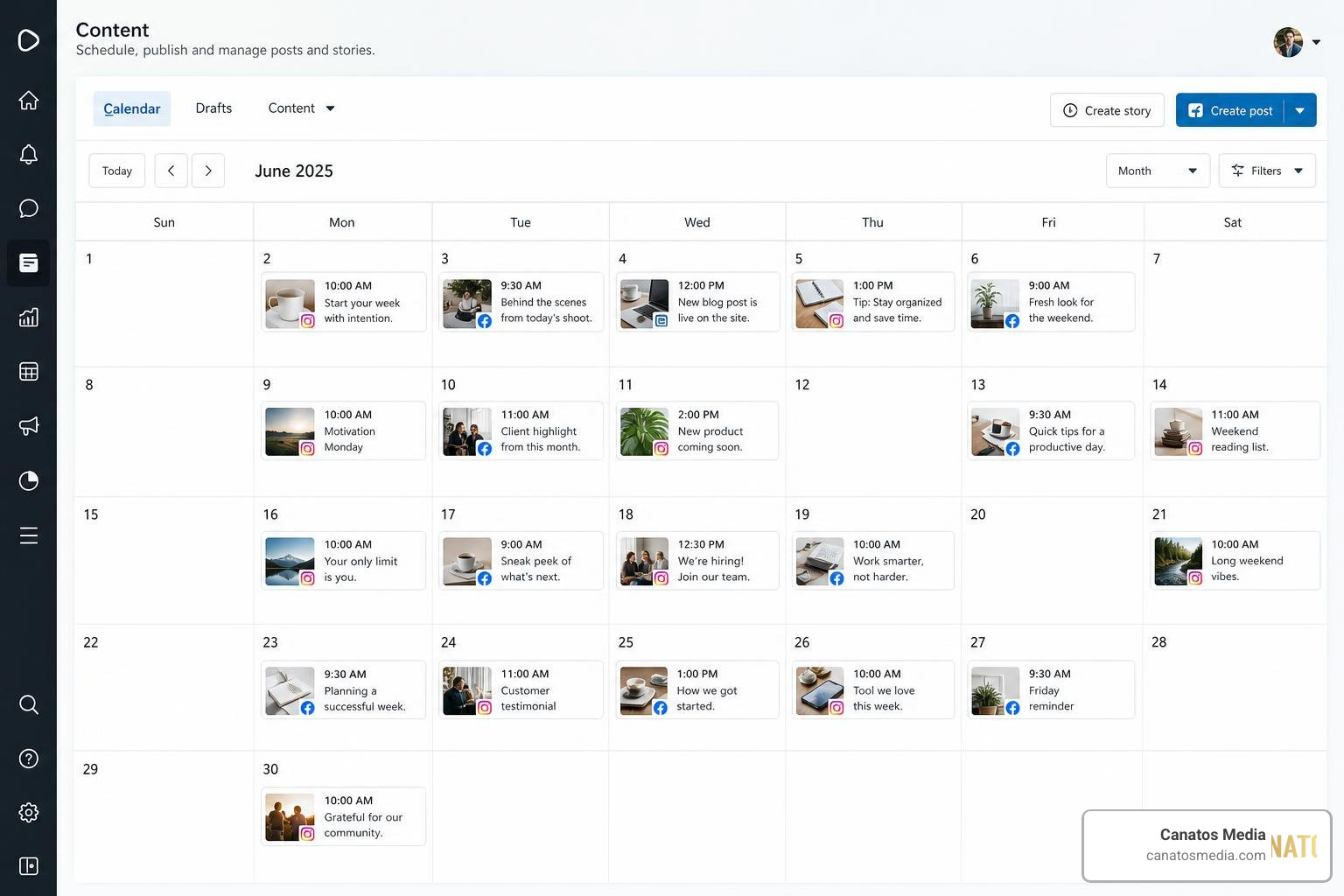
For day-to-day social media management, Meta Business Suite is an incredibly powerful, free platform. It saves business owners on Long Island and throughout the Tri-State area from having to pay for expensive third-party scheduling tools.
If you are just getting started, you can watch How To Set Up A Meta Business Account in 2026 – YouTube to get your business accounts linked up properly.
Navigating the Meta Business Suite Ads Manager Interface
To access Meta Business Suite, make sure you are logged into your personal Facebook account, then switch your profile to your Facebook Page. On the left-side menu of your desktop screen, you will see the shortcut to Meta Business Suite.
Once inside, the navigation menu on the left side is your gateway to everything. The most critical button here is All Tools. Clicking this expands a directory where you can jump straight into advanced settings like Business Settings, Events Manager (for tracking your website pixel), Audiences, and even Ads Manager.
If you manage multiple local brands, you can easily switch between different business accounts and Facebook Pages using the dropdown menu in the top-left corner of the Business Suite dashboard.
Managing Organic Assets and Engagement
The magic of Meta Business Suite lies in how it streamlines community management.
- Unified Inbox: Instead of opening separate apps, you can read and reply to messages and comments from Facebook, Instagram, and Messenger in one single screen. You can even connect WhatsApp Business to keep all client inquiries organized.
- Post and Reel Scheduling: You can draft a post or upload a vertical video for a Reel, write your captions, add local hashtags, and schedule them to go live at different times on Facebook and Instagram to match when your specific audiences are most active.
- Lead Center: When you run lead generation forms, you don’t have to open Ads Manager to find your prospects. Meta Business Suite has a built-in Lead Center where you can view, download, and organize incoming leads.
- Stories: Share behind-the-scenes moments of your business by scheduling Stories across both platforms simultaneously.
Deep Dive into Meta Ads Manager
When you are ready to transition from simple social posts to generating measurable conversions, it’s time to step into Meta Ads Manager. This is the exact tool we use at Canatos Media to build high-converting paid social campaigns. To explore this in-depth, check out our Step-by-Step Guide to Paid Ads.

To access the platform directly, you can visit Meta for Business (formerly Facebook for Business).
Ads Manager is built on a rigid, three-tier campaign hierarchy:
- Campaign Level: This is where you define your ultimate business objective. Meta asks you: What is the goal of this campaign? You can choose from Awareness, Traffic, Engagement, Leads, App Promotion, or Sales. This is also where you can toggle on Advantage Campaign Budget (which automatically distributes your budget across your ad sets).
- Ad Set Level: This is where the logistics happen. You define who sees your ads (targeting), where they see them (placements), and how much you want to spend. This is where you build custom audiences, lookalike audiences, or target specific geographic locations like Nassau and Suffolk counties.
- Ad Level: This is the creative layer. It’s what your potential customers actually see on their feeds. Here, you upload your images or cinematic short-form videos, write your primary ad copy, design headlines, and select your call-to-action (CTA) buttons.
By keeping these three levels organized, you can easily run A/B split tests to see if a certain video creative performs better than a static image, or if a warm lookalike audience converts at a lower cost than broad demographic targeting.
Setting Up Campaigns in Meta Business Suite Ads Manager
To set up a campaign that won’t drain your bank account, you must align your campaign objective with your actual business goal. If you want phone calls or form fills, do not choose “Traffic” — choose “Leads.” If you choose Traffic, Meta’s algorithm will optimize for people who like to click links but rarely buy or sign up. Choosing the wrong objective is one of the primary reasons businesses struggle; learn more about how to Stop Burning Cash on Bad Meta Ads.
Once your objective is set, you will configure your targeting. You can target users based on:
- Demographics: Age, gender, relationship status, education, and job titles.
- Interests and Behaviors: What pages they like, what products they buy, and what devices they use.
- Custom Audiences: Uploading your customer email list, targeting past website visitors via the Meta Pixel, or retargeting users who watched 50% of your Instagram Reels.
For a deeper look at setting up your pixel and managing these assets, read our Meta Ads Management Ultimate Guide.
Leveraging AI and Automation Features
In 2026, Meta’s advertising platform relies heavily on artificial intelligence. Marketers who learn to collaborate with these AI features get far better results than those who try to manually control every variable.
- Advantage+ Campaigns: These are Meta’s highly automated campaign setups. Advantage+ Shopping Campaigns, for example, are designed specifically for e-commerce brands. They automate creative combinations, placements, and audience expansion, using machine learning to find the buyers most likely to convert.
- Dynamic Creative: Instead of building ten different ads manually, you can upload up to ten images/videos, five text options, and five headlines. Meta’s AI will mix and match these assets to serve the best-performing combination to each individual user.
- Automation Rules: Think of these as your campaign safety net. You can set up rules that say: “If the Cost Per Lead goes above $25, pause the ad set automatically,” or “If an ad set generates a Return on Ad Spend (ROAS) greater than 3.0 over the last 3 days, increase the daily budget by 15%.”
- The Learning Phase: Whenever you launch a new ad set, Meta enters the “Learning Phase.” This is when the algorithm is gathering data to figure out who is most likely to click or convert. During this time, performance can fluctuate. Making large edits (like changing budgets by more than 20% or editing ad creative) restarts this phase, so it’s critical to let your ads run uninterrupted until they exit the learning phase.
Reporting, Troubleshooting, and Mobile Functionality
Launching your campaigns is only half the battle; tracking performance and fixing technical hurdles is where the real work begins.
Desktop vs. Mobile Ads Manager App
While we always recommend building your campaigns on a desktop computer for maximum control, the mobile app is an excellent companion tool for checking in on the go.
The mobile app has earned a solid reputation among business owners, boasting over 10 million downloads and a 4.4 rating on Meta Ads Manager on Google Play and a 4.6 rating on the Apple App Store. You can download the iOS version via Meta Ads Manager 4+.
- What you can do on mobile: Monitor real-time campaign performance, pause underperforming ads, adjust daily budgets, receive instant alerts when a campaign budget is spent, and quickly switch between different ad accounts.
- What you should do on desktop: Build complex campaign structures, set up custom conversion tracking, run detailed audience research, export custom reports, and manage pixel integrations.
Troubleshooting Common UI Frustrations
Meta’s interface is notorious for updates that can leave users feeling lost. Here are a few common issues and how to solve them:
- “Why is everything greyed out?” If you can’t click the “Edit” button or create a new campaign, it’s almost always a permissions issue. You need to make sure you have “Admin” or “Advertiser” access to the specific ad account.
- Missing Ad Accounts: If your business page is showing up but your ad account is missing, check the dropdown menu in the top-left corner of Ads Manager. You may have your personal ad account selected instead of your business ad account.
- Two-Factor Authentication (2FA): Meta now strictly requires 2FA for all business managers. If you or your team members don’t have this enabled, Meta may restrict your ability to edit ads or access Page settings.
- Onboarding Team Members Safely: When granting access to employees or agencies, always follow the principle of least privilege. Assign them as an “Advertiser” or “Analyst” rather than giving away full “Admin” control. For step-by-step instructions on secure setup, refer to the Meta Ads Add User Access | OpsBlu Docs.
Frequently Asked Questions about Meta Advertising
What is the difference between Meta Business Suite and Ads Manager?
Meta Business Suite is built for organic page management (scheduling posts, responding to customer messages, and viewing page growth). Meta Ads Manager is a dedicated platform built for paid advertising campaigns (audience targeting, budget bidding, and conversion tracking).
Why can’t I see my ad account or edit campaigns?
This usually happens because you have the wrong ad account selected in the top-left dropdown, or you do not have the proper user permissions assigned to your Meta Business account. Go to your Business Settings to verify your access level.
What is the learning phase in Meta ads and why does it matter?
The learning phase is the period when Meta’s algorithm is actively delivering your ads to find the best audience. During this time, performance may be unstable. Avoid making significant changes to your budget, targeting, or creative during this phase to keep the algorithm from resetting.
Conclusion
Navigating the meta business suite ads manager ecosystem doesn’t have to feel like a chore. By using Meta Business Suite to keep your community engaged and using Ads Manager to run structured, conversion-focused paid campaigns, you can build a highly effective digital marketing funnel.
For local businesses in the Tri-State area and Long Island, standing out online requires a cohesive approach. At Canatos Media, we specialize in an integrated strategy that connects high-end, cinematic short-form video content with precise targeting and conversion optimization. Whether you need hands-on social media management, technical paid ad support, or strategic direction, we are here to help your business grow.
Ready to take your digital marketing to the next level? Explore our Meta Google Advertising Services and let’s build a strategy that drives real, measurable results for your business.